Business OSby CODE44
DownloadGet startedStart
EN
Your company, at hand

Business OS.
On your device.

Save your company once and open its workspace as a separate app. Your team, tasks and familiar personal settings — right where you work.

You need an internet connection and a Business OS account. The splash screen lasts 2 seconds; on a slow connection the workspace may take longer to load.

Business OS
Business OS logoAll set to workOpening your company's workspace
Made by CODE44
A short splash screen — 2 seconds
App versions

Choose your system

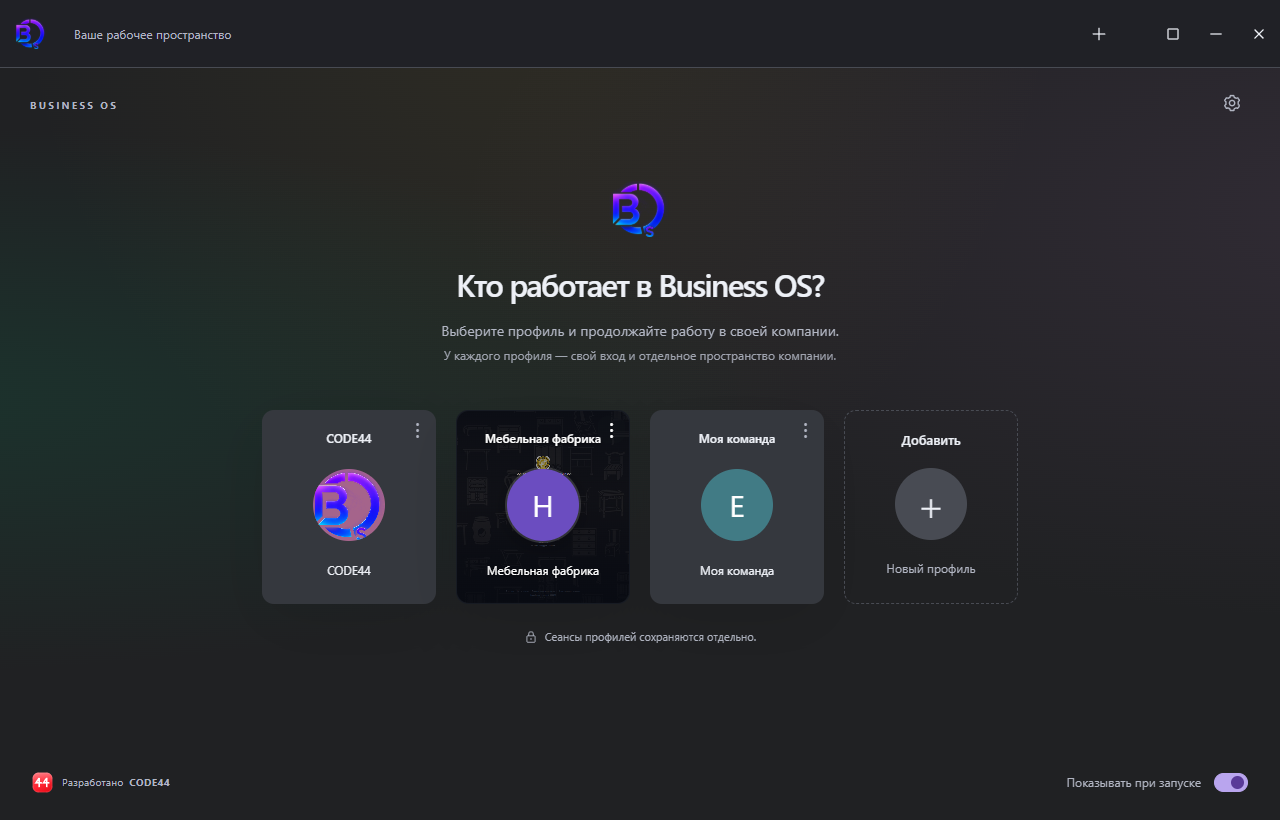
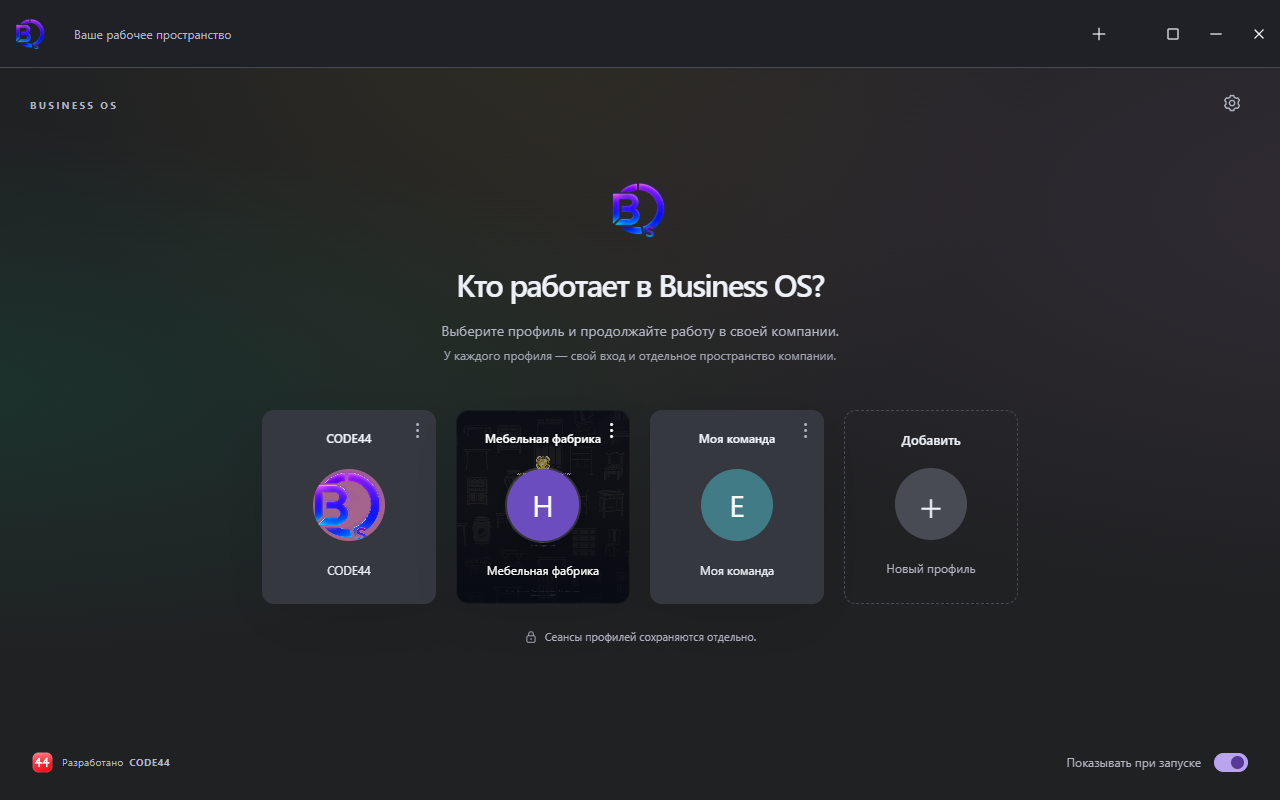
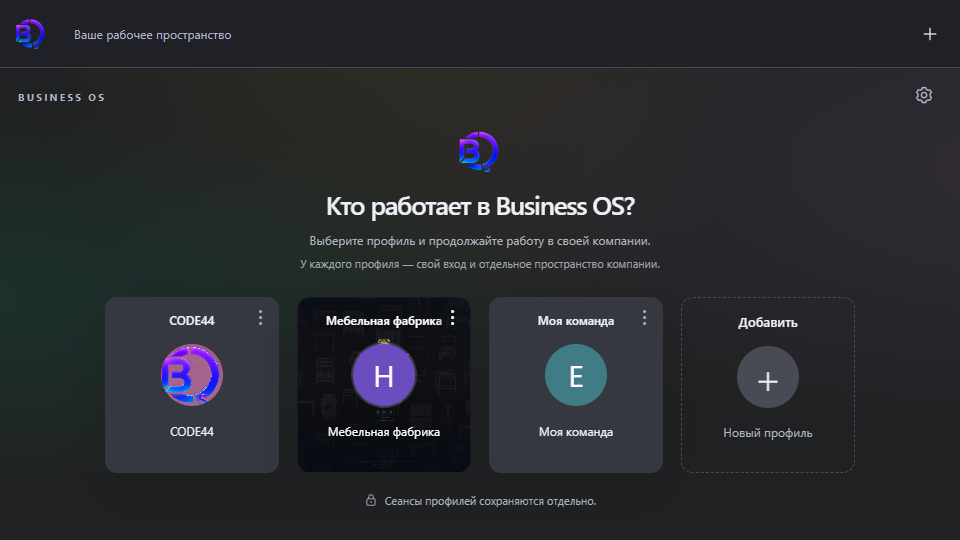
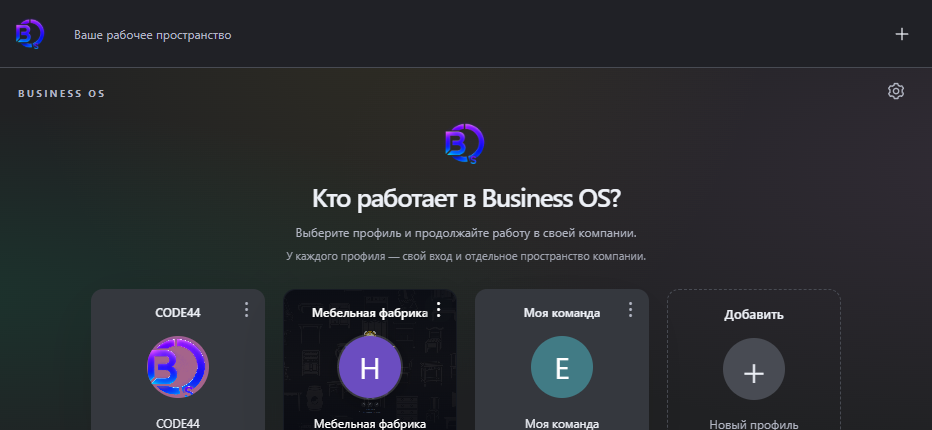
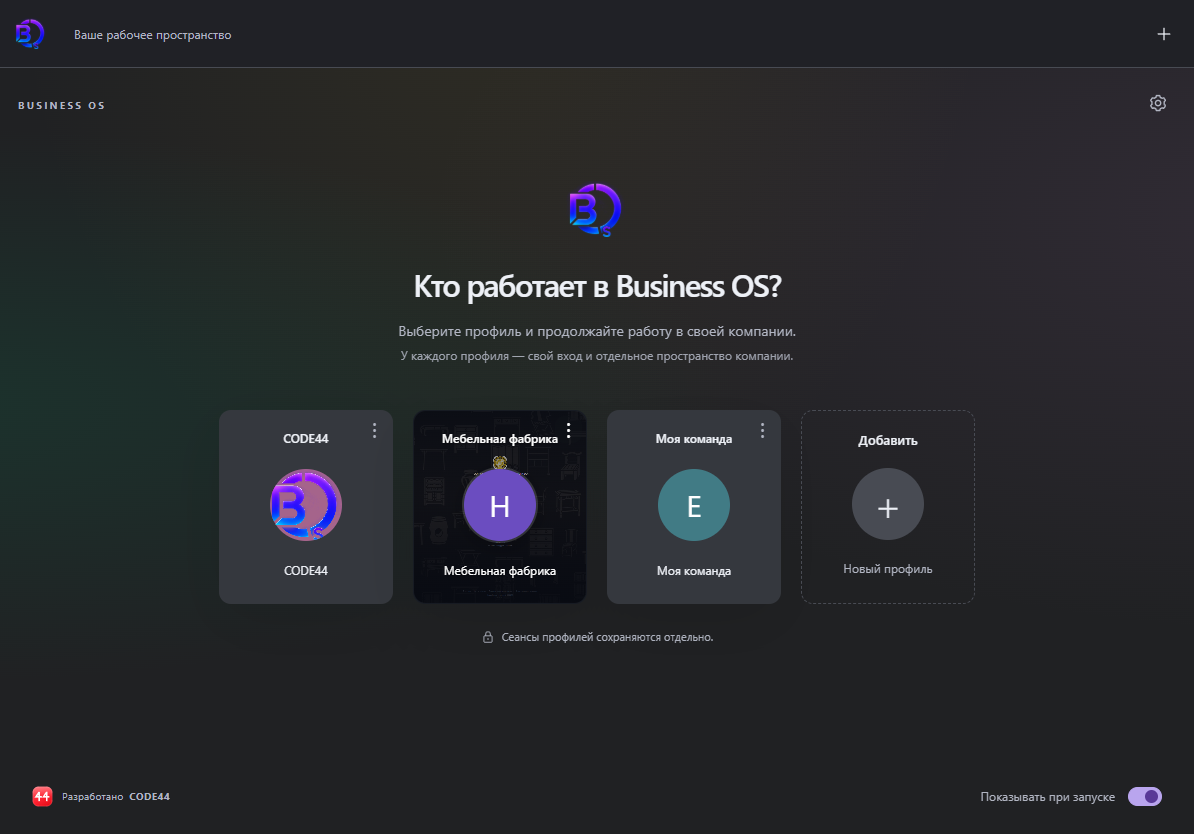
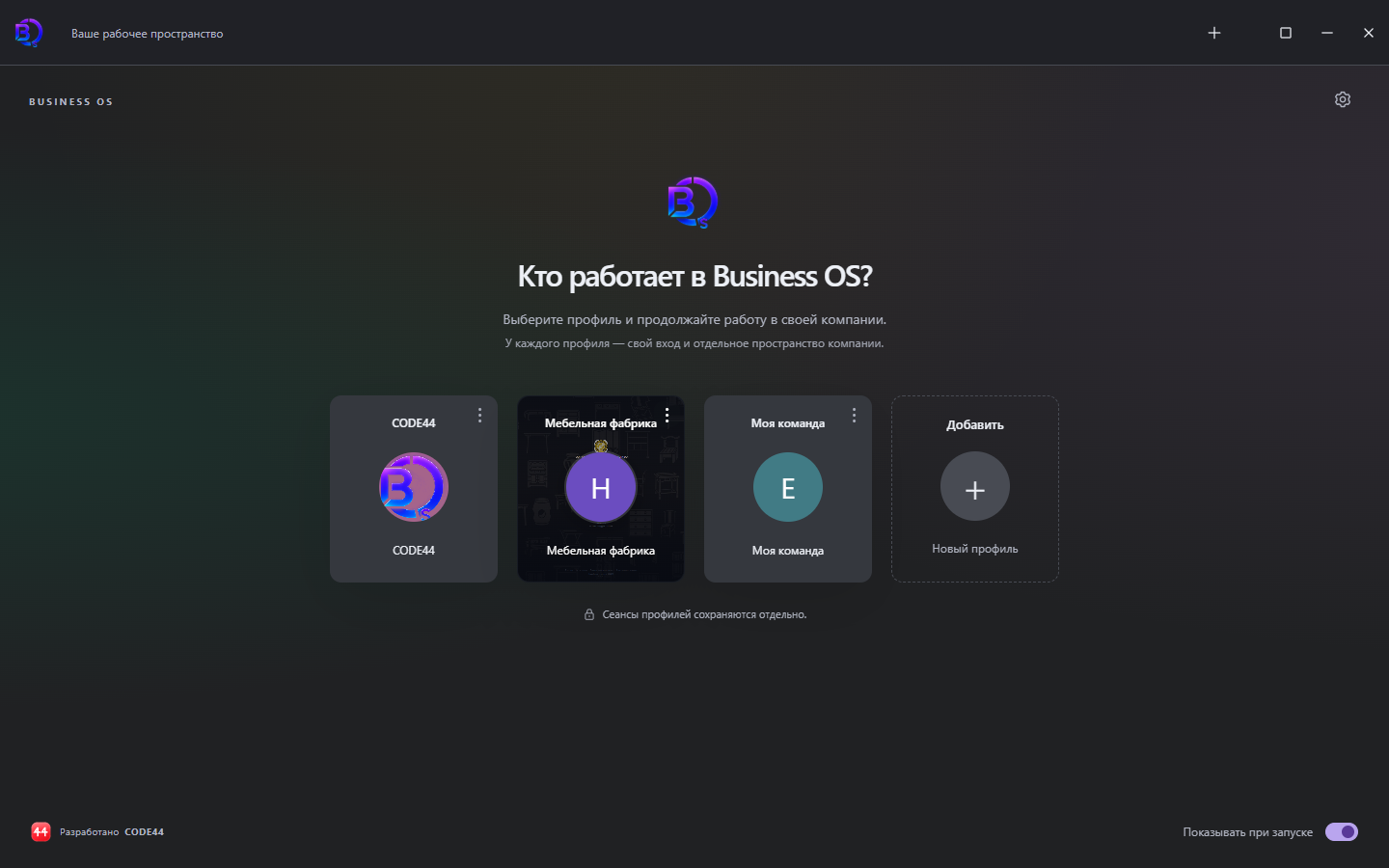
Choose your device and download the available version. The images show the app interface with sample profiles; click to take a closer look.

Available to download

macOS

macOS 14 and later · Apple Silicon / Intel

Two ready builds: for Mac computers with Apple and Intel processors.

Business OS on macOS preview: choosing saved company profiles
Interface preview · macOS

Version 1.0.3 · DMG · Apple Silicon · 5.3 MB / DMG · Intel · 5.7 MB

Before installing on a MacThe builds are signed locally, without a Developer ID signature or Apple's check (notarization). On first launch, macOS may ask for a separate permission.

How to install on a Mac
  1. Choose the DMG for your processor: Apple Silicon or Intel.
  2. Open the disk image and drag Business OS into the Applications folder.
  3. Try launching the app. If macOS blocks it as an app from an unidentified developer, make sure the file was downloaded via the link on this page, from the Code44Team/Business-OS-Releases repository.
  4. Open System Settings → Privacy & Security and click “Open Anyway”, then confirm the launch.

The permission applies to this app only. Apple's first-launch guide.

Available to download

Linux

64-bit · DEB and AppImage packages

A package for Debian-based systems and a standalone app file for compatible distributions.

Business OS on Linux preview: choosing saved company profiles
Interface preview · Linux

Version 1.0.3 · DEB · 4.7 MB / AppImage · 79.2 MB

How to install

Open the DEB in your system's package manager and install the required dependencies. For AppImage, allow the file to run in its properties, then open Business OS. Compatibility depends on the distribution and installed system libraries.

Available to download

Android

Android 9 and later · phones and tablets

Quick access to your company from a mobile device. The interface adapts to the screen size.

Business OS on Android preview: choosing saved company profiles
Interface preview · Android

Version 1.0.4 · APK · 33.2 MB

How to install

Download APK 1.0.4 and open it on your device. Android will ask you to allow installation for the app you opened the file from. After installing, launch Business OS and add a profile by B-ID.

The app opens in landscape orientation. Profiles and their sign-in sessions are stored separately on the device. You may need to sign in again after signing out, when a session expires or under your company's security rules. A Google Play link will appear once the app is published in the store.

Preparing for release

iPhone and iPad

iOS / iPadOS 17 and later

The same Business OS interface for Apple devices. The project is being prepared for release once Apple Developer signing is connected.

Business OS on iPhone preview: choosing saved company profiles
Interface preview · iPhone
Business OS on iPad preview: choosing saved company profiles
Interface preview · iPad
Waiting for Apple signing
How installation will work

Installing on iPhone and iPad requires a signed build. An Apple Developer account is not connected yet, so the installer is not available. We will publish the installation method once signing is connected and the version is checked. Until then, you can work in Safari.

Available now

In the browser

Computer, phone or tablet

The same system, familiar apps and your settings. No installation needed.

Find your company by B-ID or name

Installers download directly from CODE44's official GitHub page. No GitHub account needed.

First launch

Your company is remembered.
Work goes on.

01

Add your company

Enter your company's B-ID or its exact name. To search by a personal B-ID, the app asks for your password to confirm your account.

02

Choose a profile

Add companies as separate profiles and open them in tabs on your computer. Profiles have separate storage. You can close a tab and keep the profile for the next launch. On Android, the profile and its session are stored on the device; you sign in separately for each profile.

03

Open your desktop

Choose what to show on launch: the profile list or the last company. The profile list opens by default. Sign in with your account — your personal settings apply on this device.

The system grows with you

A team of more than 40 people continuously updates Business OS. Shared business app features are updated on the server and become available as you work with the system.

A new version of the client itself is installed separately. On a computer, Business OS will notify you of an available update and offer to go to the download.

See the development plan

Comfortable for your company

Each employee's personal settings apply across devices. The company decides the set of apps and access rights.

We can build additional features for your processes together with you, free of charge. Let's discuss what will help your team work more comfortably.

Discuss your needs